
This is a section accessible at each project level by privileged users, where assessment checklist can be instantiated, filled-in, finished, marked as consolidated and selected for further visualisation.
1. How to set privileges for assessment relevant actors
Roles can be created (e.g. assessor, consolidator, assessment viewer…) and privileges can be set for each such role by an admin user (or any user with privilege Top Navigation Bar → System → User management), in System section of Jems (see also details User Management (roles) ).
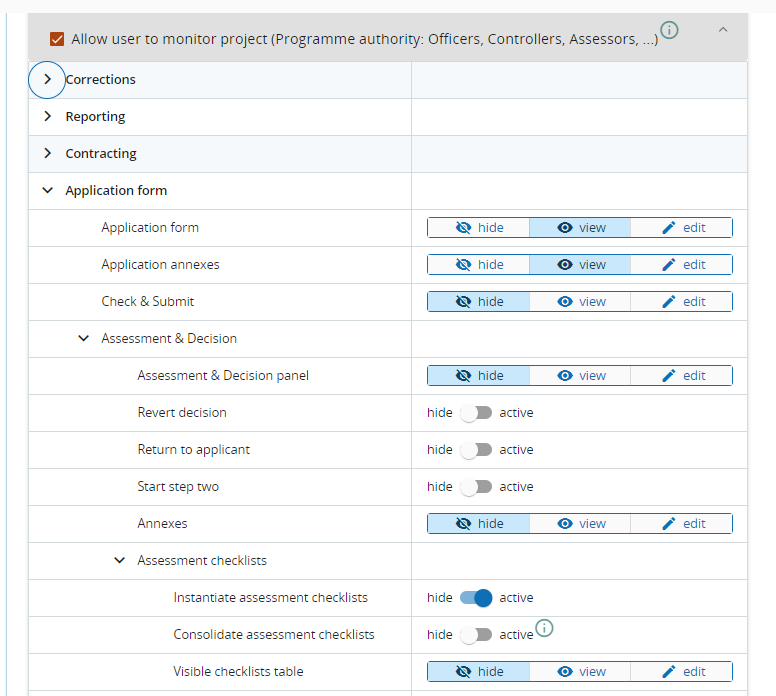
For an user (Assessor) to be able to instantiate, fill-in and finish an assessment checklist, the privilege “Instantiate assessment checklists“ from Application form → Assessment and Decision has to be set to “active”.
An assessor can’t view the checklist instantiations of other assessors assigned for the same project!
Please see below indicative configuration of Assessor role - configuration can be tailored according to programme’s specific needs:

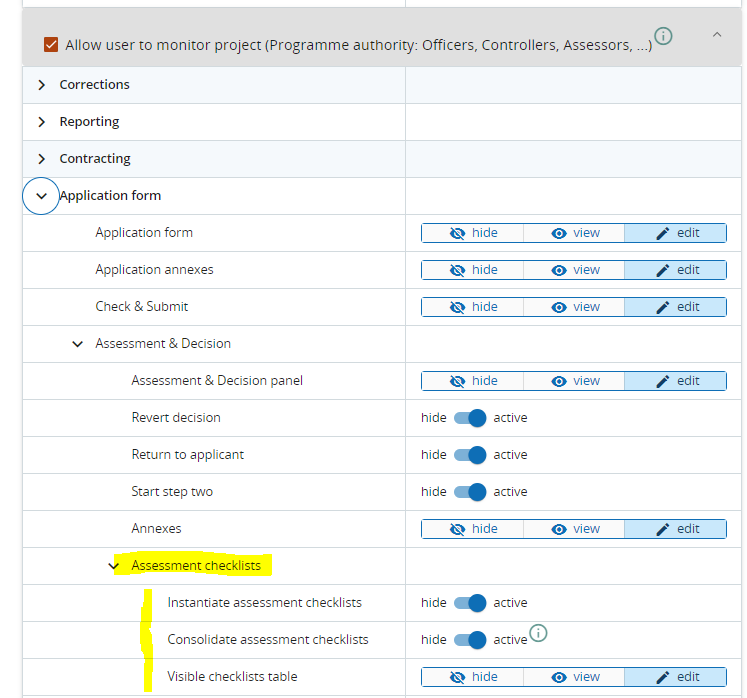
For an user (Consolidator) to be able to view in read-only mode all checklist instantiations of all assessors, send checklist instantiations back to assessor for corrections and mark a checklist instantiation as “Consolidated”, the privilege “Consolidate assessment checklists“ from Application form → Assessment and Decision has to be set to “active“.
The “Consolidate assessment checklist“ privilege can only be set to “active” for a user with privilege to “Instantiate assessment checklists“.
Thus, the consolidator can also create, edit and finish own checklist instantiations.
Consolidator can’t edit checklist instantiations created by the other assessors!
For a user to be able to mark some/all checklist instantiations as visible for other users (e.g. MC members), the privilege “Visible checklists table“ from Application form → Assessment and Decision has to be set to “edit“.
Please see below indicative configuration of Consolidator role - configuration can be tailored according to programme’s specific needs:
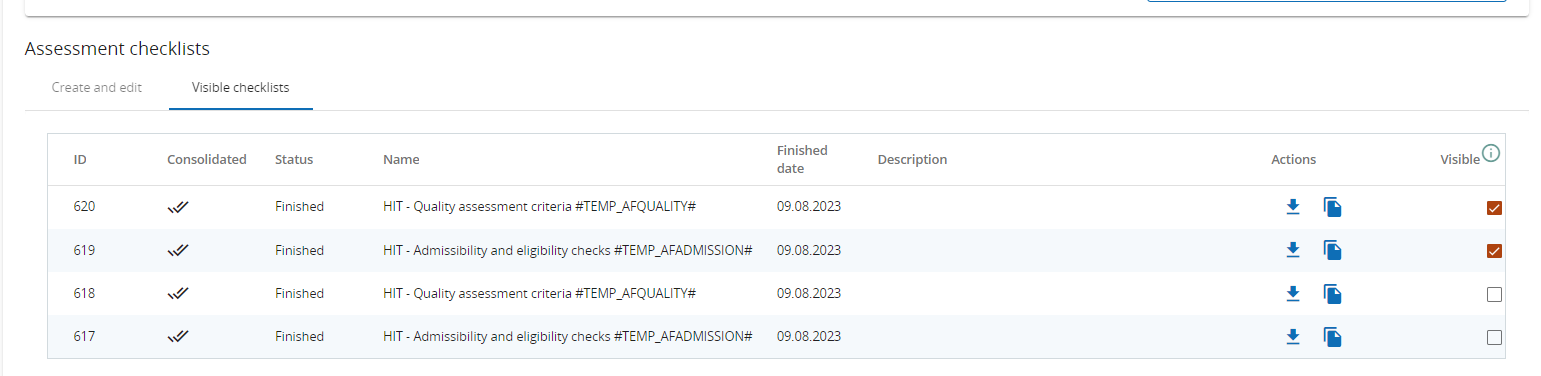
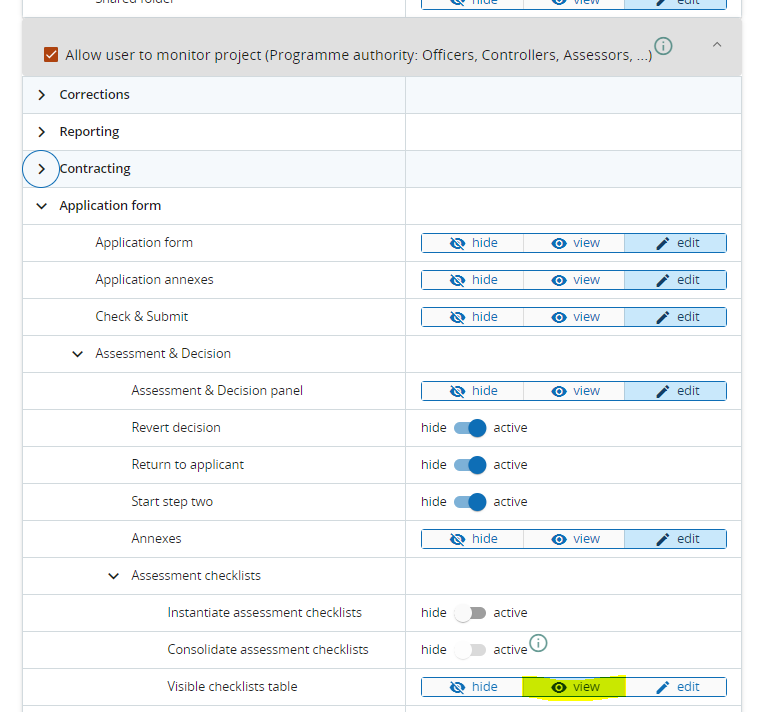
For an user (View-only user / MC member) to be able to view assessment checklists marked as visible in the system, the privilege “Visible checklists table“ from Application form → Assessment and Decision has to be set to “view“.
Please see below indicative configuration of View-only role - configuration can be tailored according to programme’s specific needs:

2. How to assign projects to assessors / consolidators
Projects can be assigned to assessors / consolidators by a privileged user in the system, following the steps mentioned here: List of applications/projects (see assignment)
3. How to instantiate, fill-in and finish assessment checklists
In each project section, under Assessment and Decision section, Assessment checklists menu is displayed and can be used by privileged users that are assigned to the projects.
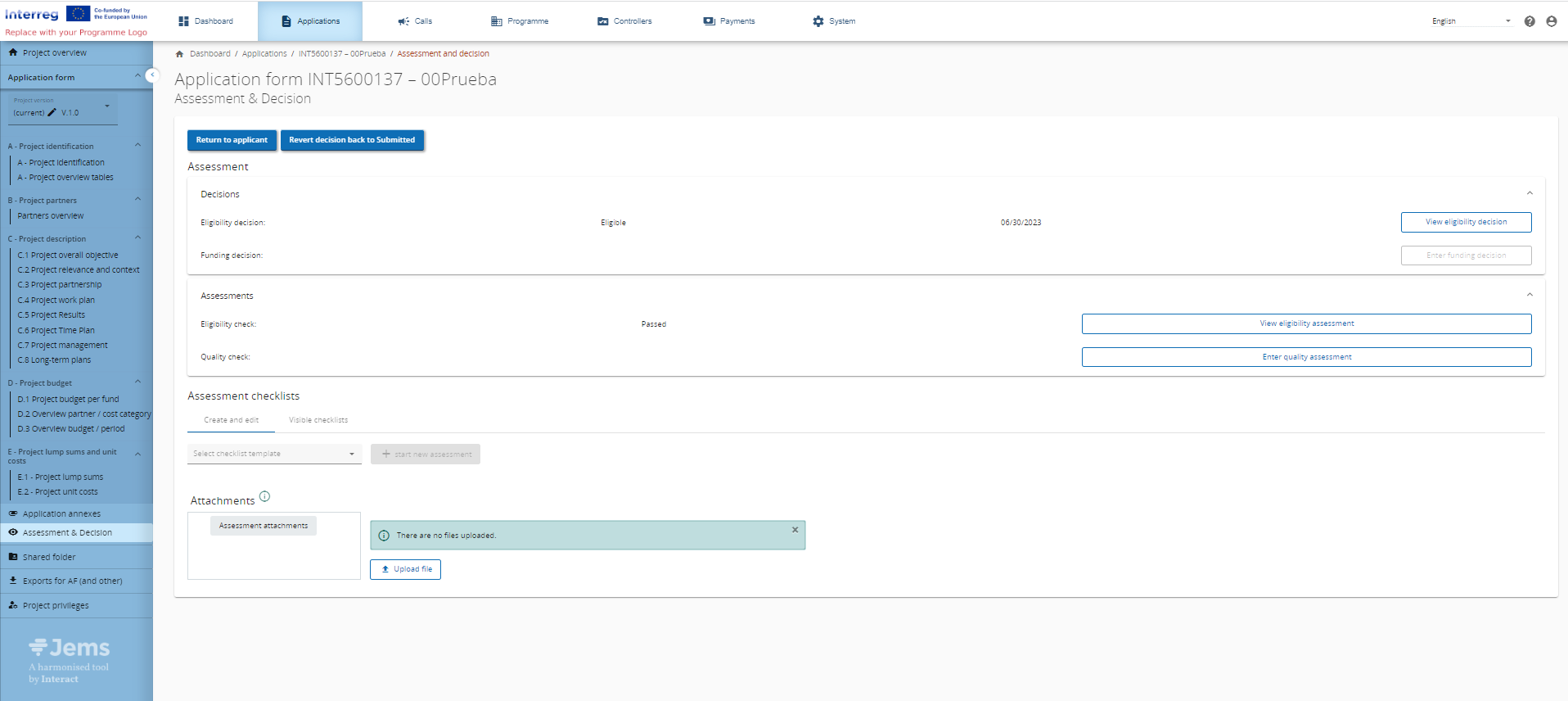
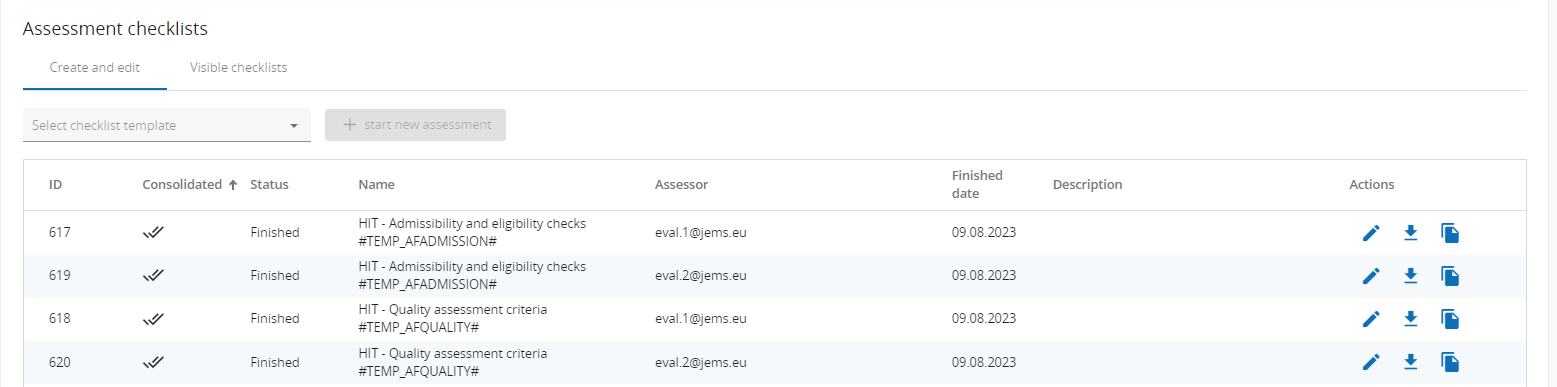
In “Create and edit assessments“ tab, users can select which checklist they want to fill in from a drop-down list.
The drop-down is listing all checklist templates type Assessment created at programme level. User must navigate through the list and select the exact one it is supposed to fill in.
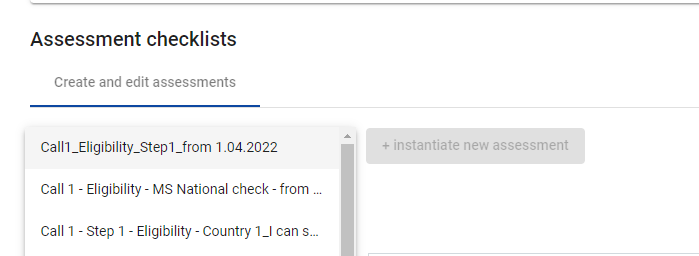
Once selection of the checklist is done, Button “+Instantiate new assessment” becomes active. The checklist can now be opened in edit mode.
Checklists in edit mode can be filled-in, saved and/or finished.
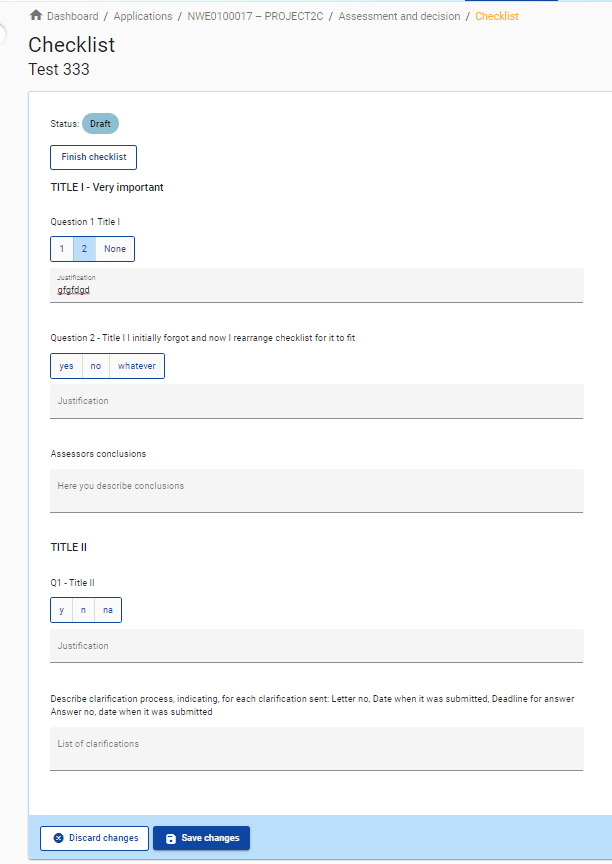
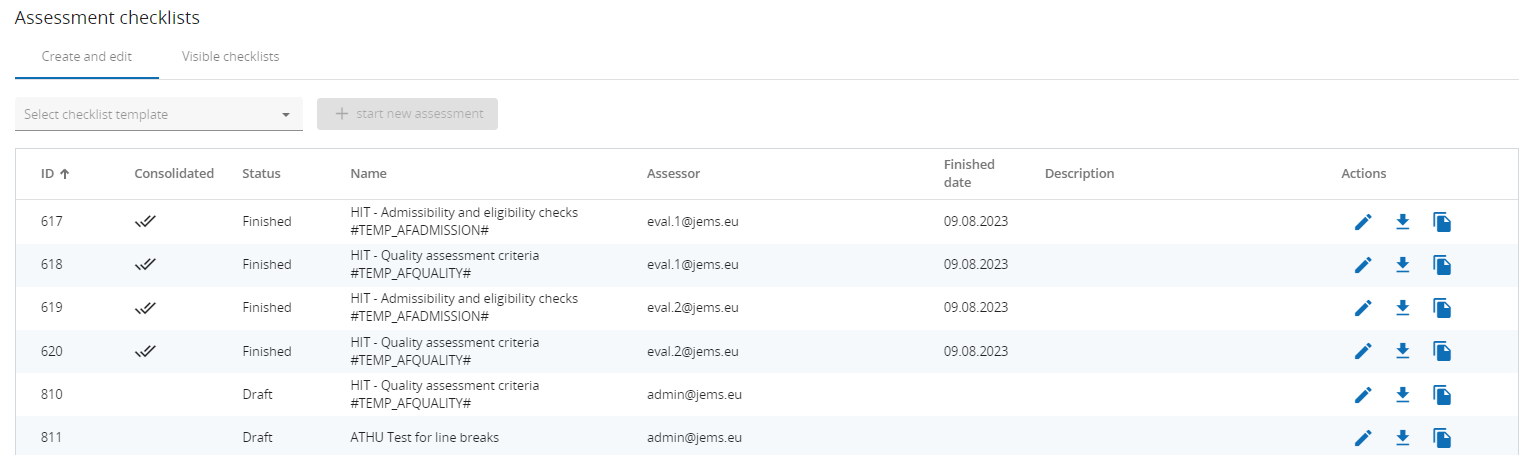
After checklist is first saved, it is shown in Assessment Checklists section, with the status Draft. While in Draft status, a checklist can always be re-opened by the assessor user and can be filled-in, modified or deleted. Once a checklist is finished, it can’t be edited anymore. However, a consolidator user can reopen a checklist to it’s original creator, by reverting it to the Draft status.
An assessor user can only see its own instantiations of checklists in “Assessment checklists“ section of the Application Form!
4. How to mark an assessment checklist as consolidated and how to reset status from Finished to Draft
An user with Consolidator role/privilege can see in “Assessment checklists“ section of the Application Form all checklists instantiated, both draft and finished.
Consolidator user has exclusively read-only rights for checklists instantiated by other users - user can’t edit checklist instantiations of other users.
An user with Consolidator role can also instantiate and finish their own checklists, following the same steps described above.
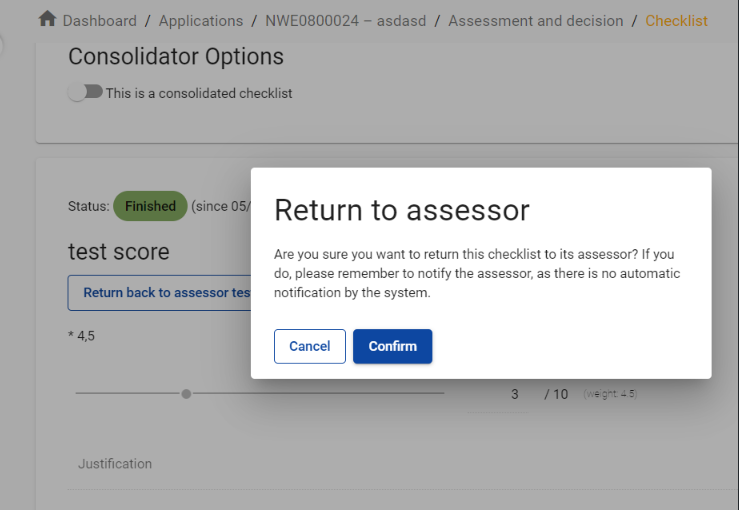
A consolidator user can revert the status of a Finished (and not consolidated) checklist back to draft by clicking on the checklist and then pressing “Return back to assessor…“ button on top of the checklist and “Confirm”.
After status is reverted to Draft, the original user can now edit the checklist.
No versioning of the checklist is created in the system! A checklist reverted to Draft can be modified and even deleted and no initial version will be accessible anymore.
Only finished checklists can be marked as “Consolidated“ by clicking on the checklist, marking it “This is a consolidated checklist“ and Save Changes. Once consolidation option is saved, the checklist will appear with a mark in the “Assessment checklists“ section of the Application Form.
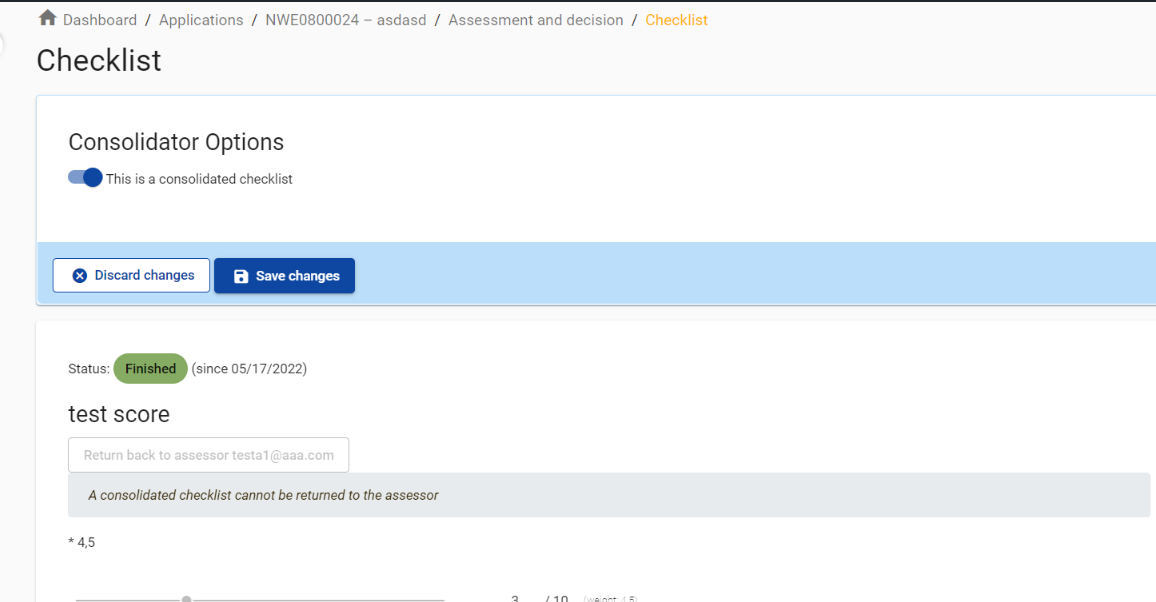
A consolidated checklist can be also marked as not consolidated, by following the same steps from above.
When more assessors filled in and finished checklist instantiations that have to be consolidated in one single checklist and editing in the consolidated version is needed, the consolidator usually instantiates a new checklist, copy/pastes what is relevant from assessor’s finished checklists, adds own comments and final results, finished the checklist and marks is as “Consolidated”.
A more comfortable approach is expected in future versions of Jems.
5. How to select assessment checklists for further visualisation by privileged users
In order to select the checklists that will be visible to privileged users. The checklists have to be ticked in “Visible checklists“ tab by an user with edit privilege Selected assessment list (Consolidator in example provided above in this chapter - see above).
Only finished and consolidated checklists will show up in this list and can be selected for further visualisation. If a finished checklist instantiation gets back in Draft status, it will no longer be shown in this list.
Users with assessment checklist view rights can only see in read-only mode the checklists instantiations that were set as visible in tab above.
View-only user can’t edit or change status of a checklist instantiation!