This section allows you to show and hide fields in the application form. In case of a 2-step procedure, the programme user can also choose to hide fields in step 1 seperately from step 2.
This section should be handled carefully. One should consider that:
-
The Application form configurations might potentially conflict with general call settings and/or budget settings:
-
e.g. if no State aid scheme / de minimis is activated for the call, the dropdown of the field “GBER scheme / de minimis” is empty.
-
e.g. if the columns “Unit type & No. of units” are hidden, the Unit costs for one cost category activated in the budget settings cannot be used by the applicant.
-
-
General call settings and/or budget settings might over-rule Application form configurations:
-
e.g. if you don’t allow real costs and unit costs for a certain cost category, the whole table of that cost category will be hidden in the application form, irrespective of what columns you show/hide in the Application form configuration.
-
1-step Call
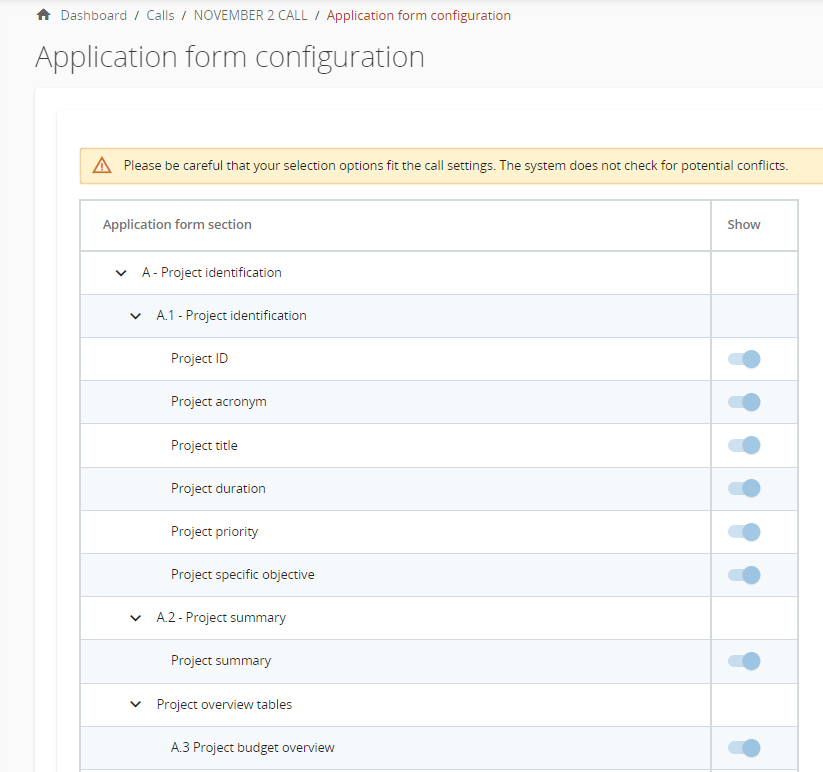
The Application form configuration section allows you to show and hide fields using the toggle button under “Show” as shown in the screenshot below:
-
For the non-optional fields of the HIT template, the toggle button is always on (light blue) and the field cannot be hidden.
-
For the optional fields of the HIT template, the toggle button by default is off (grey) and can be switched on (blue).
2-step Call
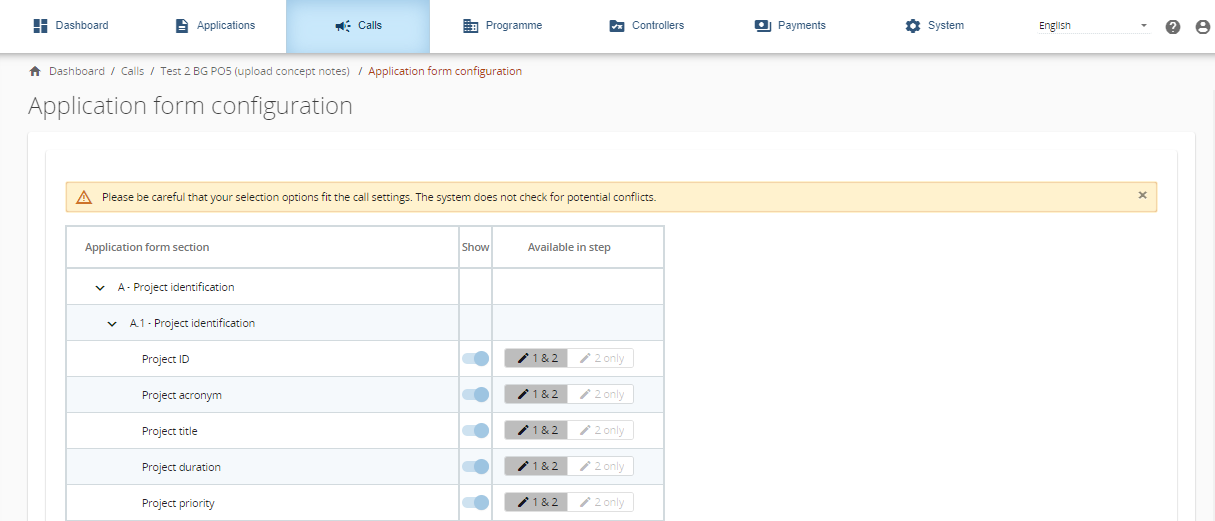
If the 2-step call procedure is chosen in the general call settings, the Application form configuration is reset and the “Available in step” column becomes visible as shown in the screenshot below.
-
When the toggle button “Show” is switched off, the “Available in step” buttons are greyed out.
-
When the toggle button “Show” is switched on, you can choose to show the concerned field in step 1&2 or to show the field in Step 2 only.
Fields that are defined by the regulations and/or by HIT as mandatory cannot be hidden via the Application form configuration. Those fields can only be hidden in the 1st step of a 2-step call procedure.
General principles
-
Generally, every field of the HIT application form template can be configured separately. However, fields that are logically connected (e.g. Unit type & No. of units) are combined in the Application form configuration.
-
If all fields under a section are switched off, then the entire section is hidden in the application form.
-
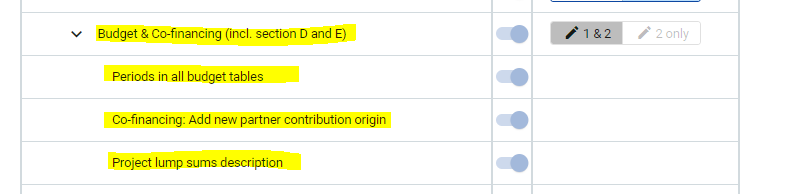
For the section Budget & Co-financing incl. section D and E, there are specific configuration options available:
-
Switch off Budget entirely (only allowed in step 1 of a 2-step call procedure).
-
Switch off periods in all budget tables of the application form.
-
Switch off partner contribution in the co-financing section prevents adding additional contribution sources on top of the own partner contribution.
-
Switch off Project lump sums descriptions in the Application Form.
-